Tutorials
Transparent Background Maker: How to Make an Image Background Transparent
Make an image background transparent and download a real PNG. Learn formats, checkerboard previews, transparency tests, and common cutout fixes.
 Gabe Garcia
6 min read
#transparent background maker#make image background transparent#transparent png#png background#image editing
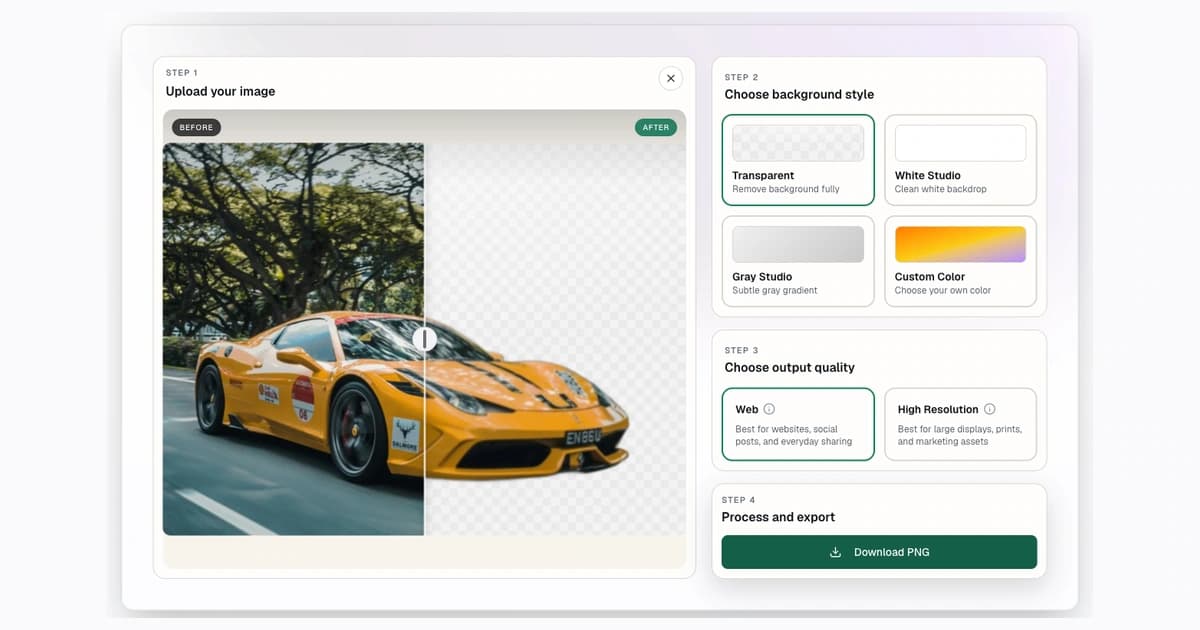
A transparent background lets the subject float over any design, color, website, presentation, marketplace graphic, or social post. The simplest way to make an image background transparent is to remove the background, download the result as a PNG, then test the file on a non-white background before you publish it.
You can start with the transparent background maker on Background Remover. Upload your image, remove the background, then download a PNG with transparency.
What Is a Transparent Background?
A transparent background means the empty area behind the subject has an alpha channel. The file does not contain white pixels, gray pixels, or a checkerboard image. It contains transparent pixels.
That distinction matters. Many design apps show a checkerboard to help you see transparent areas, but the checkerboard is only a preview. If the checkerboard is baked into the file, the image is not transparent.
Step 1: Start With the Transparent Output Workflow
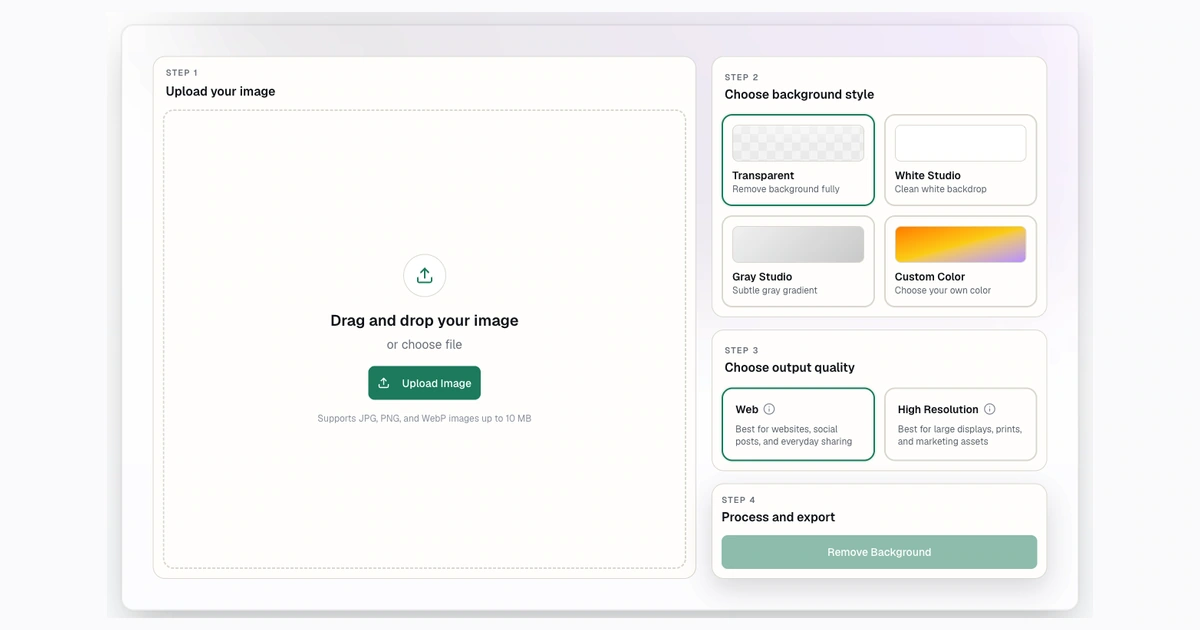
Step 2: Upload the Image
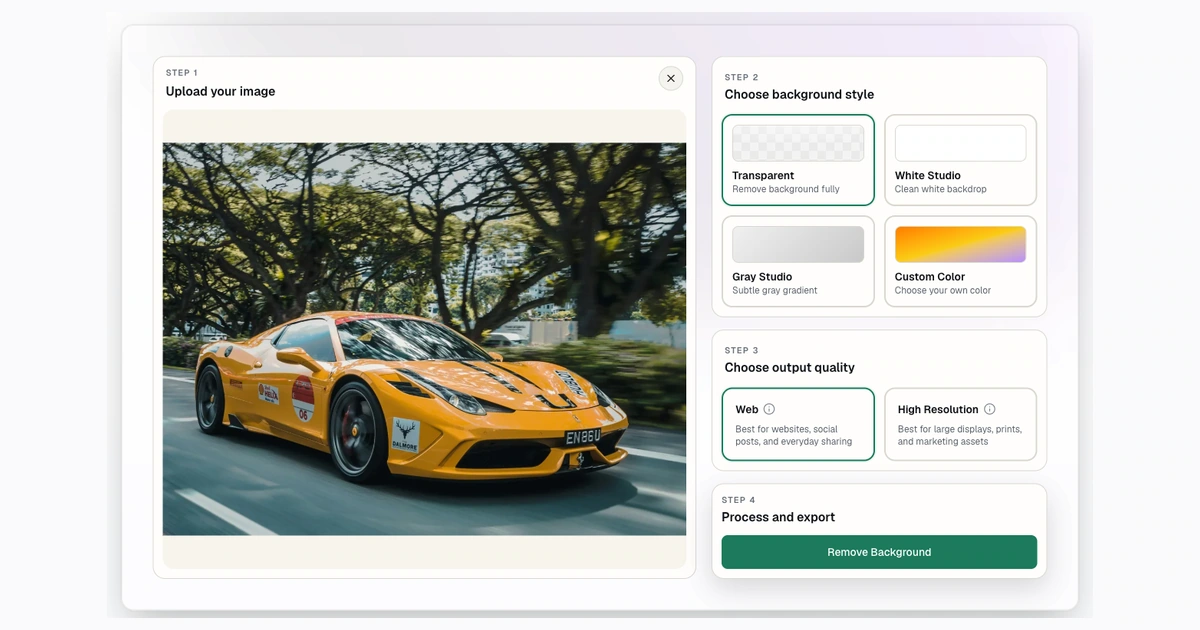
Step 3: Confirm the Transparent Result
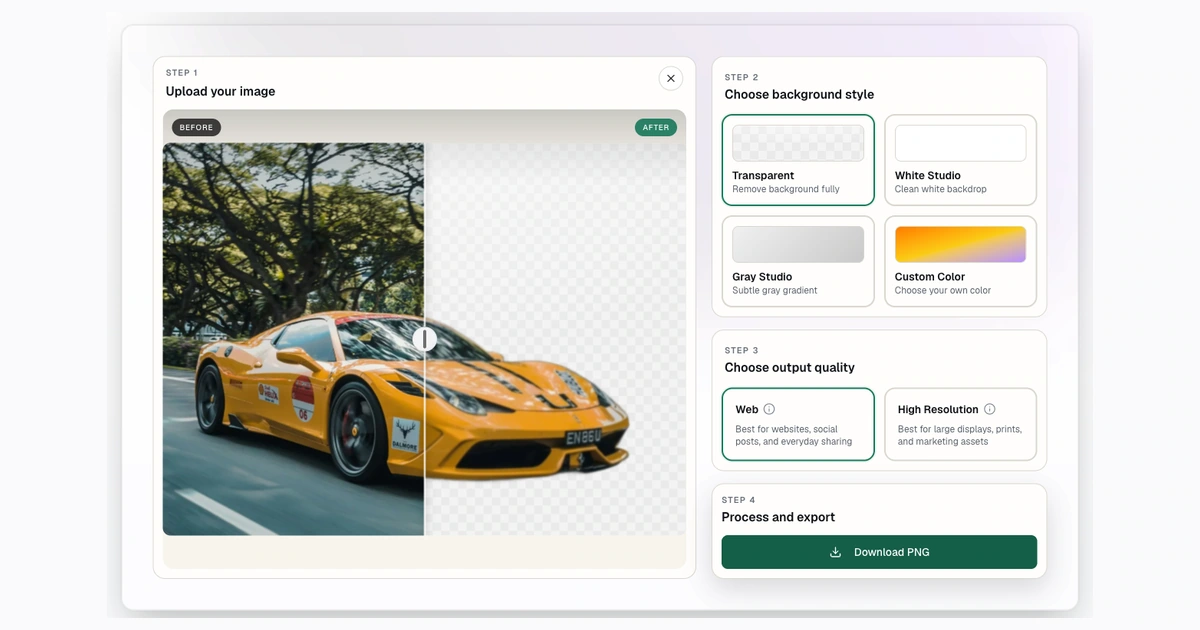
How to Make an Image Background Transparent
Use this workflow:
- Upload a JPG, PNG, or WebP image to Background Remover.
- Let the tool remove the background.
- Keep the transparent output selected.
- Download the PNG.
- Open the file on a dark, light, or colored background to confirm the transparency.
If you need a different canvas size afterward, use the image converter. For example, you can resize a transparent cutout to 1000x1000 pixels before placing it in a product page or design template.
Best Images for Clean Transparent Cutouts
Transparent backgrounds work best when the subject is clear and the original image has enough edge detail. The tool can handle many ordinary photos, but some source images are naturally harder.
Better inputs usually have:
- A sharp subject.
- Good contrast between subject and background.
- Even lighting.
- No heavy motion blur.
- The full subject visible inside the frame.
Harder inputs often include clear glass, white products on white backgrounds, flyaway hair over busy scenery, reflective surfaces, and very small objects. Those images can still work, but you should inspect the result more carefully.
Transparent PNG, WebP, and Checkerboard Previews
PNG is the safest default for transparent cutouts. It preserves transparency and usually keeps edges crisp.
Transparent backgrounds need a format that can preserve empty pixels. If a destination does not support transparency, use a solid background instead.
WebP can support transparency, but not every destination treats WebP the same way. If you are sending the image to another person, marketplace, print service, or older workflow, PNG is usually easier.
A checkerboard preview is not a file format. It is a visual pattern used by apps to show empty pixels. Always test the downloaded file before assuming it is transparent.
How to Check If Your Background Is Actually Transparent
Do not check transparency on a white page only. A white rectangle around the image can disappear on a white page and then show up later on a colored slide, ad, or website.
Use one of these checks:
- Place the file on a dark background.
- Place the file on a bright brand color.
- Open it in a design app that shows transparency.
- Add it to a browser page with a colored section behind it.
- Upload it to the final destination and preview before publishing.
If you see a white box, the image is not transparent. Go back and export as PNG.
Transparent Background Use Cases
Transparent backgrounds are especially useful for:
- Logos that need to sit on multiple background colors.
- Product cutouts for ads, banners, and catalog graphics.
- Profile photos for social media templates.
- Stickers, thumbnails, and presentation graphics.
- Image assets that will be reused in Canva, Figma, PowerPoint, or another editor.
If the final image is going directly into a marketplace listing, transparency may not be the best final format. Many sellers remove the background first, then flatten the product onto white.
Transparent vs White, Gray, or Custom Backgrounds
Transparent is best when the destination will supply the background. White is best when you want a clean product image or a marketplace-friendly look. Gray can help white products stand out. Custom colors are useful for branded graphics, sale ads, and social posts.
If you are making product listing images, read the guide to white background product photos. If you are starting from ecommerce photos, the product photo background removal guide walks through output choices by channel.
Common Problems and Fixes
The transparent cutout has a halo
Check the result on a dark background. If the halo appears, try a cleaner source image or use a solid background color that hides the edge.
The image downloads with a white box
Make sure the output is PNG and that the destination supports transparent files. Solid-background formats and upload workflows can flatten the transparent area.
The cutout is too small on the canvas
Resize after background removal. The 1000x1000 image converter is useful for square layouts, and the 2048x2048 converter is useful when you need a larger square canvas.
I need to share the transparent PNG quickly
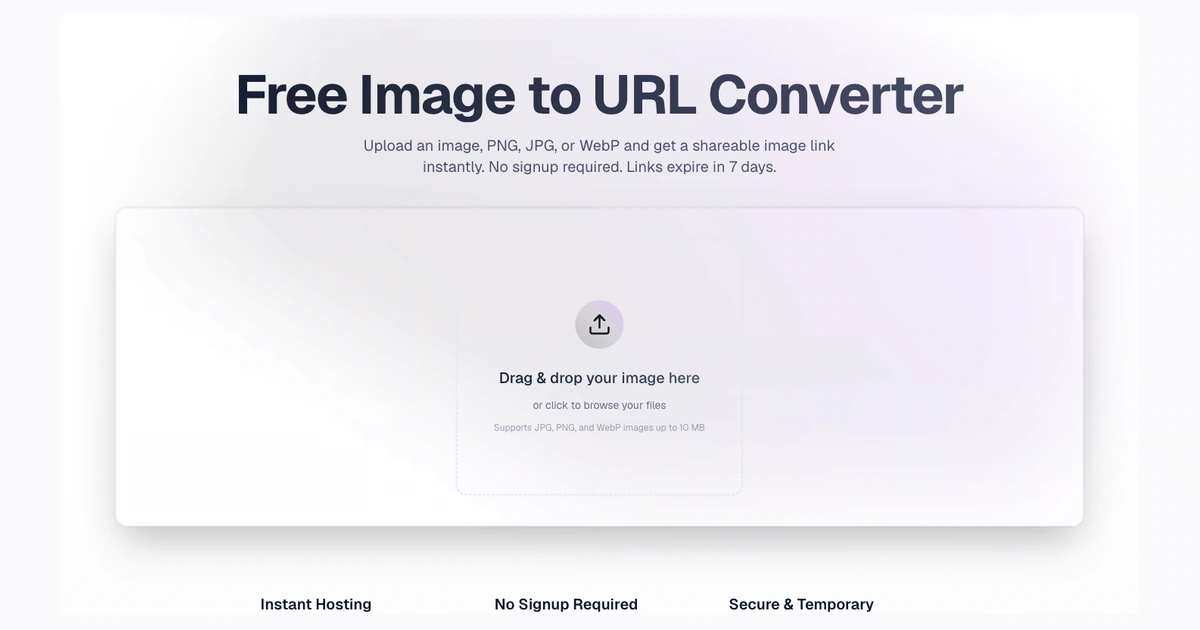
After downloading the PNG, upload it to the image to URL converter to create a temporary shareable link. Those links are useful for quick review, but avoid sharing sensitive images with anyone who should not have access to the URL.
FAQ
What is the best transparent background file format?
PNG is the safest choice because it supports transparency and is widely accepted by design tools.
Can JPG images have transparent backgrounds?
No. JPG does not support transparent pixels. Use PNG if you need transparency.
Is a checkerboard background transparent?
Not by itself. A checkerboard can be a preview of transparency, but it can also be an actual pattern saved into the image. Test the downloaded file on a colored background.
Can I make a logo background transparent?
Yes. Upload the logo or image, remove the background, and export as PNG. If the logo has tiny text or thin lines, inspect the result before using it in production.
Can I make a product photo background transparent?
Yes, but transparent product cutouts are usually best for design workflows. For marketplace listings, white or solid backgrounds are often easier to publish.
Try Background Remover Today
Remove 250 backgrounds each month for $20.
Related Posts
Continue reading our latest insights
Comparison9 min read
Best Background Remover Tools in 2026
Compare six background remover tools, led by Background Remover for focused browser work and predictable allowances, with editors and APIs also covered.
Read more
Tutorials10 min read
Resize Image to Exact Pixels After Background Removal
Resize clean cutouts to exact pixels after background removal. Compare 1000x1000, 2048x2048, fit modes, formats, and square exports.
Read more
Tutorials8 min read
How to Remove a Background From an Image
Learn how to remove a background from an image online, choose transparent PNG, white, or custom output, and fix common edge issues.
Read more