Tutorials
Resize Image to Exact Pixels After Background Removal
Resize clean cutouts to exact pixels after background removal. Compare 1000x1000, 2048x2048, fit modes, formats, and square exports.
 Gabe Garcia
10 min read
#resize image to exact pixels#image converter#1000x1000 image#square product image#transparent png
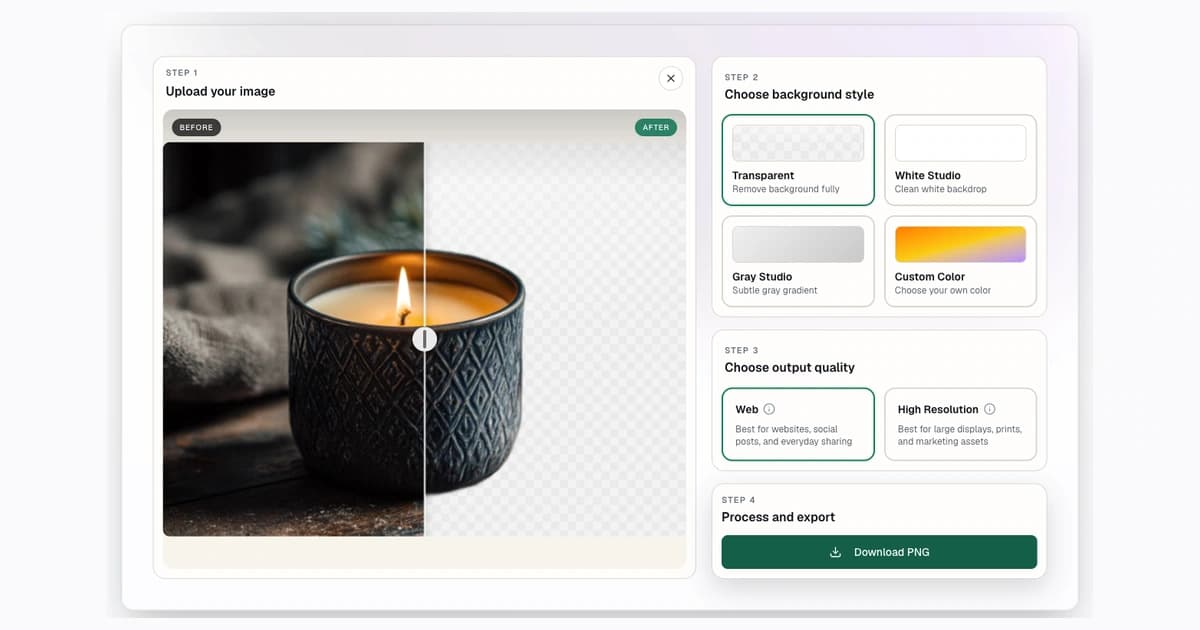
After background removal, the next question is often: what size should this image be? A clean transparent cutout can still look wrong if the canvas is too tight, too wide, stretched, or inconsistent with the rest of a product grid.
The best workflow is to remove the background first, then resize the clean cutout to exact pixels with an image converter. This keeps the subject clean before you decide whether the final output should stay transparent, use a white background, or use another supported format.
Quick Answer: How to Resize an Image to Exact Pixels After Removing the Background
- Remove the background with Background Remover.
- Download the clean cutout or white-background result.
- Open the image converter.
- Choose the exact size, such as 1000x1000, 2048x2048, or 1080x1080.
- Pick the fit mode and export format.
This article is about the workflow after the cutout. If you only need a general background removal tutorial, start with how to remove a background from an image.
Step 1: Remove the Background First
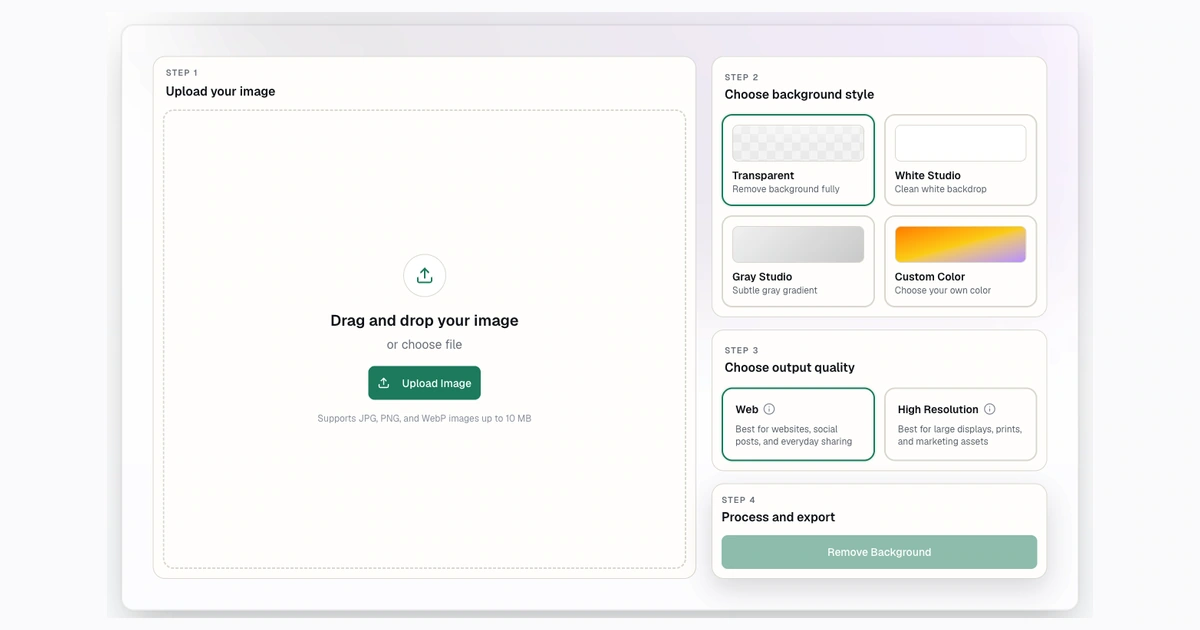
Step 2: Upload the Product Image
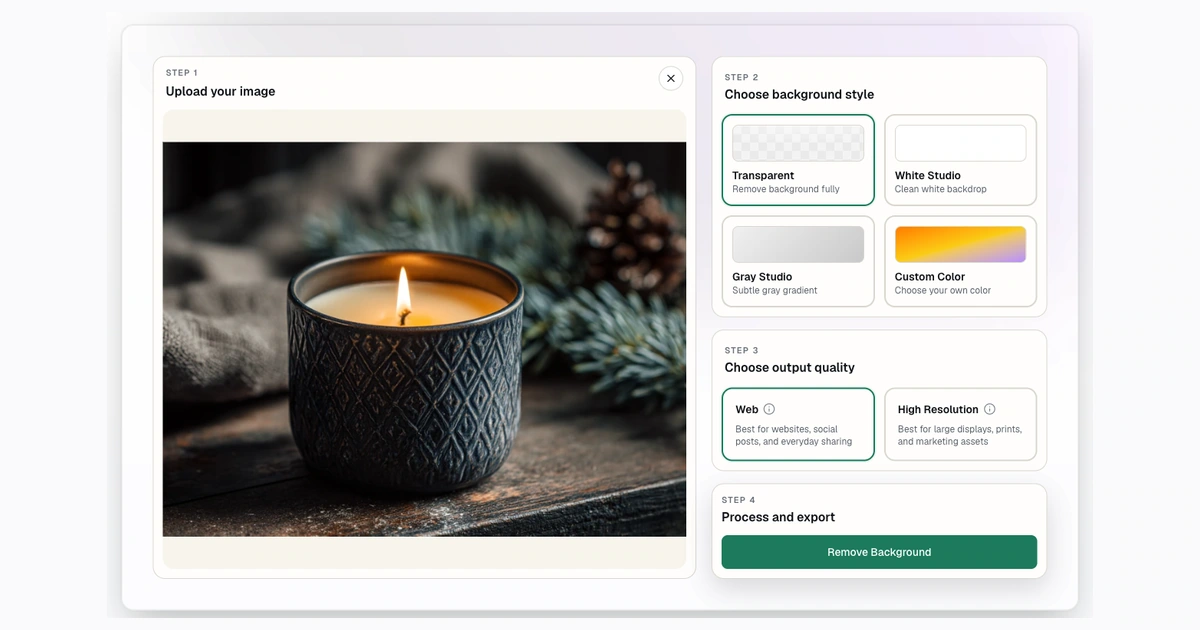
Step 3: Review the Cutout Before Resizing
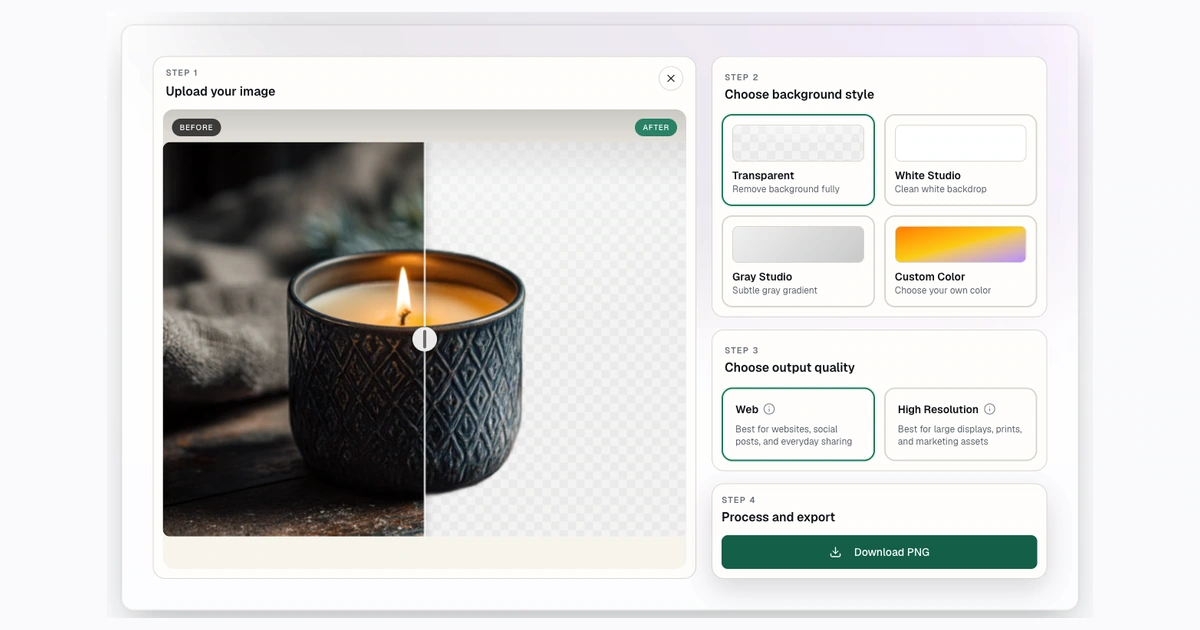
Best Exact Pixel Sizes for Clean Cutouts and Product Photos
| Size | Good for | Tool page |
|---|---|---|
| 1000x1000 | Product photos, square catalog images, marketplace prep | Resize to 1000x1000 |
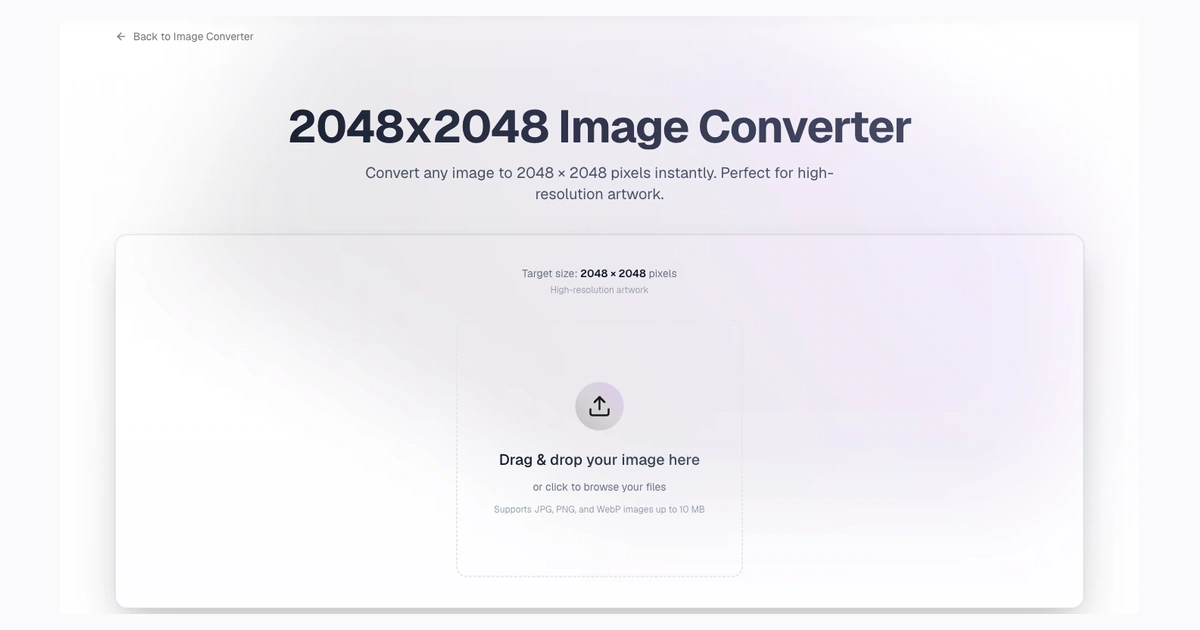
| 2048x2048 | Larger ecommerce images and high-detail square product photos | Resize to 2048x2048 |
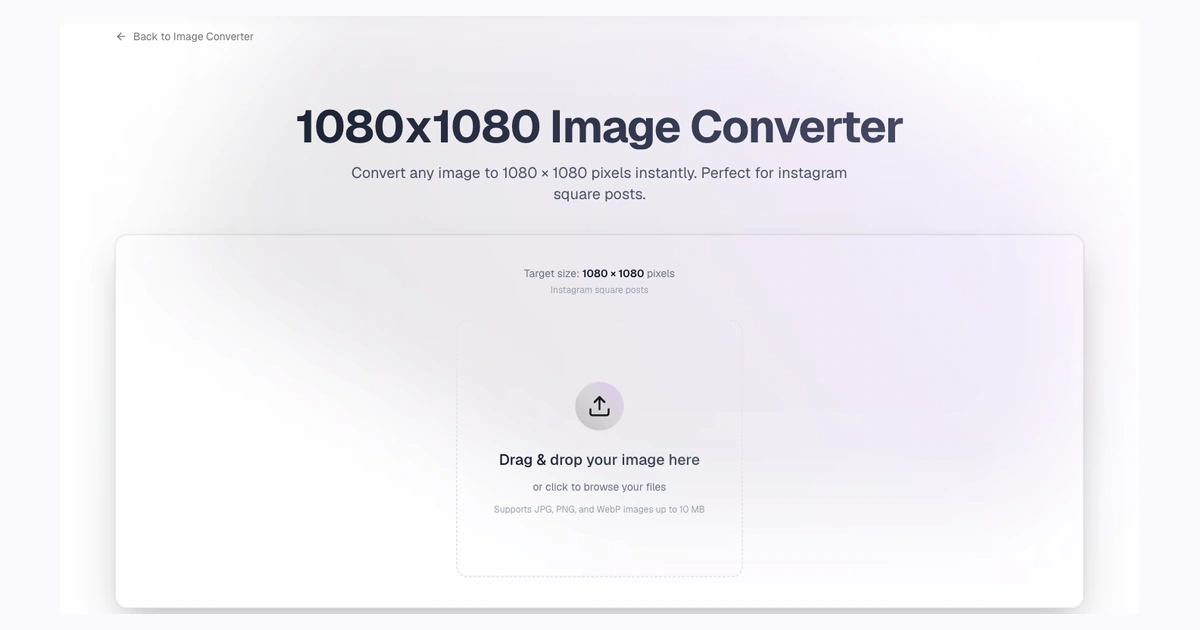
| 1080x1080 | Social posts and square promotional graphics | Resize to 1080x1080 |
| 800x800 | Product previews and compact catalog images | Resize to 800x800 |
| 500x500 | Thumbnails, small previews, lightweight assets | Resize to 500x500 |
Do not choose a size only because it is popular. Choose the size that matches the destination, then keep that size consistent across related images.
How to Convert an Image to Square Without Cropping
If the product or subject must stay fully visible, use a fit mode that contains the whole image inside the square canvas. This adds padding instead of cropping the subject.
That is usually best for product photos. A cropped shoe, clipped bottle cap, or cut-off handle looks careless and can hurt listing trust.
If the image is a social graphic and cropping is acceptable, a cover-style resize may be fine. If the subject is a product, preserve the full product unless the destination specifically calls for a tighter crop.
Contain vs Cover vs Fill
| Fit mode | What it does | Use it when |
|---|---|---|
| Contain | Keeps the full image visible and adds padding as needed. | Product photos, logos, cutouts, transparent PNGs. |
| Cover | Fills the canvas and crops overflow. | Social graphics, banners, images where cropping is acceptable. |
| Fill | Stretches the image into the exact size. | Rare cases only, because it can distort products. |
| Aspect ratio lock | Keeps proportions while changing size. | You want to avoid stretched or squeezed subjects. |
If you are not sure, use contain. It is usually the safest choice for clean cutouts.
Transparent PNG, White Background, or WebP?
PNG is best when you need transparency. Use it for design assets, logos, and cutouts that will sit on another background.
White or solid-background outputs are best when the final image should not preserve transparency, especially for clean product listing images.
WebP is useful for web delivery when the destination supports it. It can keep files smaller while preserving good visual quality.
If the image is for a marketplace, check current file format rules before upload. Some workflows are more predictable with flattened solid-background images, while others accept PNG or WebP.
Product Photo Workflow: From Background Removal to 1000x1000 or 2048x2048
For product photos, use this order:
- Remove the background.
- Choose transparent or white output.
- Inspect the product edge.
- Resize to the destination size.
- Export in the destination format.
- Preview the final image in the product page or marketplace upload tool.
If you need a clean listing image, choose a white output before resizing. If you need a reusable cutout, keep a PNG master and create separate resized versions for each channel.
The guide to remove backgrounds from product photos covers output choices, marketplace checks, and catalog QA in more detail.
Worked Example: Product Photo to 1000x1000
Imagine you have a bottle photographed on a kitchen counter. The product is useful, but the scene behind it is not. The fastest clean workflow is:
- Upload the original image to Background Remover.
- Download a transparent PNG master.
- Create a white-background version if the image is for a marketplace.
- Open resize image to 1000x1000 pixels.
- Use contain mode so the full product stays visible.
- Export the final flattened image for upload.
Keep the transparent PNG master. That source cutout can be reused for ads, landing pages, seasonal backgrounds, and alternate marketplaces. The 1000x1000 file is the delivery version, not necessarily the only version you should keep.
This is also where padding matters. A product that touches the canvas edges can feel crowded. A product with too much empty space can look small next to other listings. When you resize a set of product photos, compare them side by side before uploading the whole batch.
Worked Example: Transparent Cutout to 2048x2048
Use 2048x2048 when the product needs more detail, the store theme supports larger imagery, or shoppers will zoom in.
The workflow is similar to 1000x1000, but the quality check is stricter:
- Check fine product details after resizing.
- Make sure labels, stitching, edges, and packaging text remain readable.
- Avoid enlarging a tiny source image into a large square canvas.
- Export a white or solid-background version if the final destination does not need transparency.
Larger images are not automatically better. They can slow pages down when used carelessly. Use a larger square when the destination benefits from detail, then compress and serve the image appropriately in the storefront or CMS.
Worked Example: Transparent PNG to 1080x1080 Social Graphic
For social posts, the background removal step gives you flexibility. Instead of committing to one scene, you can place the cutout on a brand color, sale background, or seasonal layout.
Use 1080x1080 when you need a square social canvas. Keep the product centered, leave room for text if the platform and campaign allow it, and export in the format the social tool handles best.
If you are also using the same image for a marketplace, create separate exports. The marketplace version should stay clean and rule-aware. The social version can be more promotional.
Exact Pixel Resize Checklist
Before exporting the final resized file, check:
- The subject is not stretched.
- The full product or subject is visible.
- Padding is consistent with similar images.
- Transparency is preserved when needed.
- White-background images are actually flattened when the destination should not preserve transparency.
- The file is not much larger than the destination needs.
- The final image opens correctly in the tool or platform where it will be used.
This checklist is short on purpose. Most resize mistakes come from rushing one of those basics.
Which Exact-Size Converter Should You Use?
Choose the converter that matches the final destination. A clean cutout still needs the right canvas size, padding, and format before it is ready to publish.
Common starting points:
- 1000x1000 image converter
- 2048x2048 image converter
- 1080x1080 image converter
- 1600x1600 image converter
Use 1000x1000 for many square product images, 2048x2048 when the image needs more detail, 1080x1080 for square social graphics, and 1600x1600 when a store or marketplace calls for a larger square canvas.
Privacy and File Handling Notes
The image converter runs in the browser for resizing, which is useful when you want a fast local workflow for ordinary edits. Background removal itself is a separate processing step, so treat source images according to your own privacy standards and avoid uploading anything you should not process online.
If you need to share a finished image for review, the image to URL converter can create a temporary shareable link. Use it for quick collaboration, not for sensitive or permanent file hosting.
Common Mistakes That Make Resized Cutouts Look Bad
Resizing before removing the background
If you resize first, small edge artifacts can become harder to inspect. Remove the background first, then resize the clean result.
Stretching the subject
Avoid fill mode for product photos unless distortion truly does not matter. Stretched products look unprofessional.
Cropping too tightly
Leave enough padding around the subject. A little breathing room makes product grids look more consistent.
Flattening transparent images too early
Solid-background outputs cannot keep transparency. If your final output needs transparent pixels, export as PNG.
Mixing canvas sizes in one catalog
Use consistent dimensions for related product images. A grid with 1000x1000, 800x1200, and 1600x900 images can feel uneven.
Bulk Catalog Workflow for Sellers
If you are processing a full catalog, separate the work into stages:
- Remove backgrounds in batches.
- Review the batch for cutout problems.
- Keep transparent masters.
- Resize the final listing versions.
- Upload and preview.
Paid plans include bulk processing. Use the pricing page to compare monthly capacity, and read the bulk background removal workflow before processing a large catalog.
FAQ
Should I resize before or after background removal?
Resize after background removal. This gives you a clean cutout first, then lets you choose the exact final canvas.
What size should product images be?
Check the destination's current guidance. Common square sizes include 1000x1000 and 2048x2048, but requirements vary by marketplace and store design.
How do I make an image square without cropping?
Use a contain-style resize mode. It keeps the full subject visible and adds padding to fit the square canvas.
Can a transparent PNG be resized?
Yes. Use an image converter that preserves transparency and export as PNG when transparency is required.
Should I keep product photos transparent or flatten the background?
Use PNG for transparent cutouts. Use a white or solid-color output when the destination does not need transparency.
Which exact-size converter should I use?
Use the converter that matches the final destination. For a general square product image, start with resize image to 1000x1000 pixels. Use 2048x2048 or larger when the image needs more detail.
Try Background Remover Today
Remove 250 backgrounds each month for $20.
Related Posts
Continue reading our latest insights
Tutorials6 min read
Transparent Background Maker: How to Make an Image Background Transparent
Make an image background transparent and download a real PNG. Learn formats, checkerboard previews, transparency tests, and common cutout fixes.
Read more
Tutorials8 min read
How to Remove a Background From an Image
Learn how to remove a background from an image online, choose transparent PNG, white, or custom output, and fix common edge issues.
Read more