eCommerce
Bulk Background Removal Workflow for Product Photos
Process product photos in batches. Learn bulk background removal prep, output choices, QA checks, ZIP downloads, and plan-fit guidance.
 Gabe Garcia
6 min read
#bulk background remover#batch background removal#product photos#ecommerce workflow#catalog images
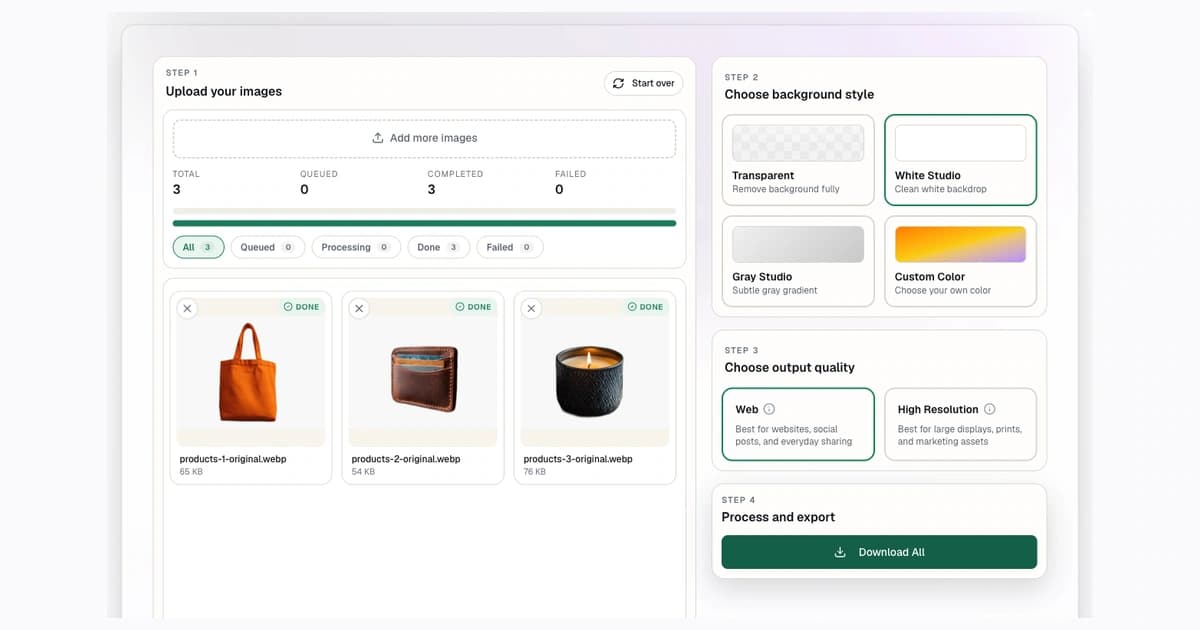
Bulk background removal is for the moment when one-by-one editing stops making sense. If you have a product catalog, client shoot, marketplace refresh, or seasonal image update, the goal is not just speed. The goal is a repeatable workflow that keeps every image consistent.
Background Remover paid plans include bulk processing with up to 50 files per batch. Use this guide to prep source images, choose the right output style, review exceptions, and export the finished batch without turning your catalog into a pile of inconsistent cutouts.
Bulk Background Removal Workflow at a Glance
Step 1: Start With the Empty Batch Workflow
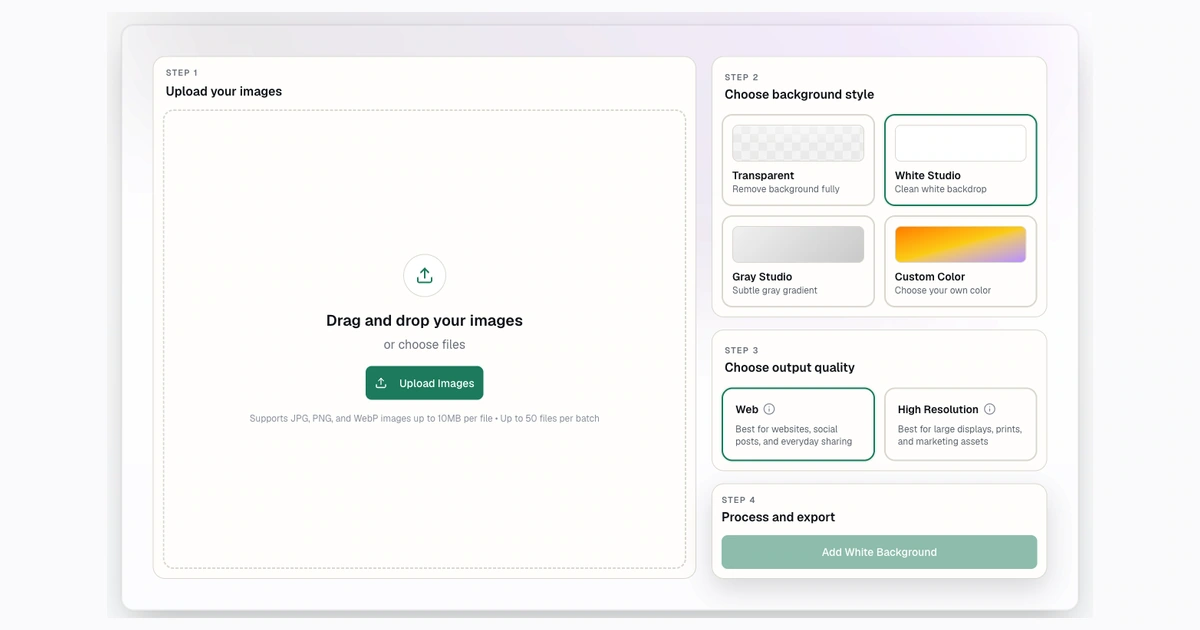
Step 2: Upload the Product Batch
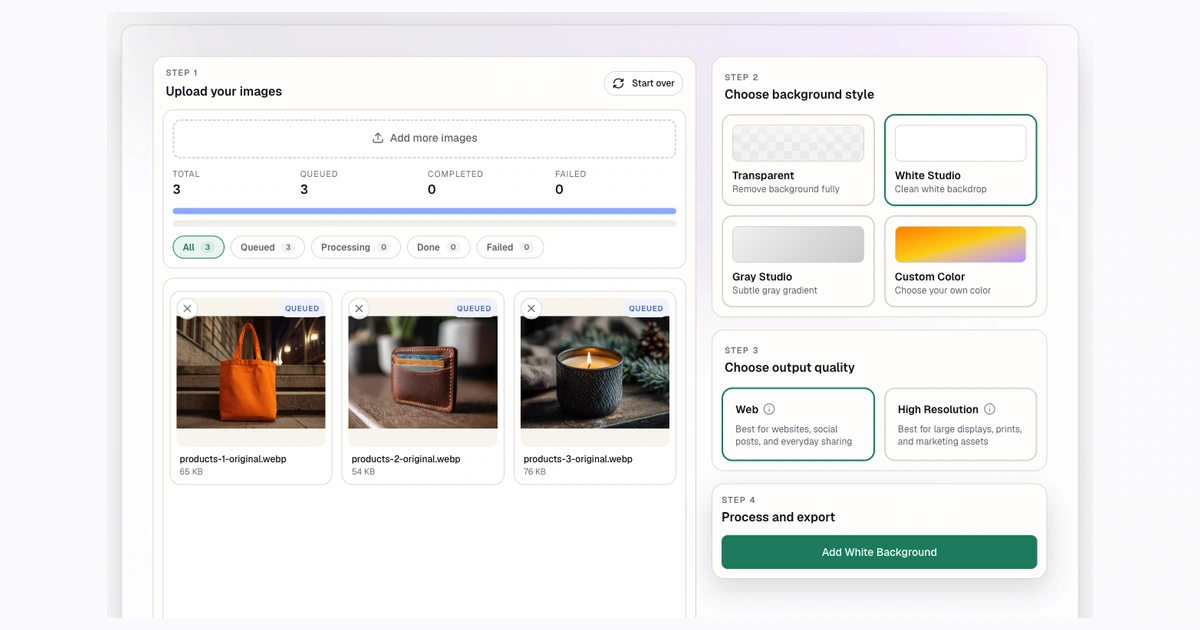
Step 3: Review the Completed Batch
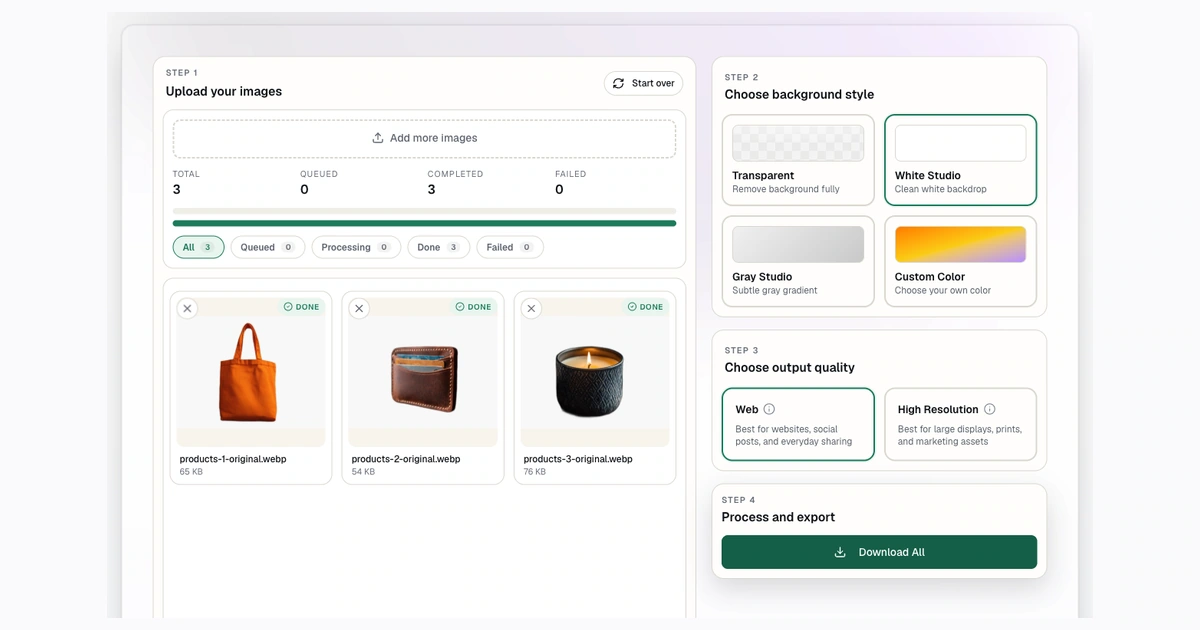
- Prep files by product type or image style.
- Upload up to 50 files per batch.
- Choose transparent, white, gray, or custom output.
- Process and review failures or edge issues.
- Download the completed set.
- Resize final images if a marketplace or store requires exact dimensions.
If you are still testing one or two images, use the public background remover first. If you are planning catalog volume, compare plan limits on the pricing page.
When Bulk Processing Beats One-by-One Editing
Bulk processing works best when the images share a similar destination. For example, a batch of product photos that all need white backgrounds is a good fit. So is a set of headshots that all need transparent PNGs.
Bulk processing is less ideal when every image needs a different creative direction, manual retouching, or a different final canvas. In that case, process a smaller set or separate images into groups.
Use bulk when:
- You have more than 10 images.
- The final background style is consistent.
- You need a repeatable catalog process.
- You can review exceptions after processing.
- You want to save time before resizing or uploading.
Step 1: Prep Your Product Photos Before Uploading
Good batch prep saves time later. Remove blurry photos, duplicates, wrong angles, and files that are clearly not ready.
Group similar products together. White products, reflective objects, portraits, and packaging all behave differently. If you mix everything into one batch, QA becomes slower.
Background Remover supports JPG, PNG, and WebP uploads up to 10 MB per file. If files are too large, use the image converter to resize before processing.
Step 2: Upload Images in 50-File Batches
The bulk workflow supports up to 50 files per batch. That cap is useful operationally because it keeps review manageable. Instead of trying to process an entire catalog at once, work in clean groups.
Examples:
- 50 apparel front-view photos.
- 50 accessory flat-lays.
- 50 product images for one category.
- 50 headshots for a team page.
Keep filenames meaningful before upload. Clear filenames make it easier to match final images to products after export.
Step 3: Choose Transparent, White, Gray, or Custom Backgrounds
Transparent output is best when the images will go into a design system, ad builder, landing page, or other layout.
White output is best for clean product listing images and consistent catalog grids.
Gray output helps white, glass, and reflective subjects remain visible.
Custom color output is useful for branded campaigns, social posts, and product launches.
If you are not sure, process a small sample first. Do not spend a full batch of monthly capacity before confirming that the output style matches the destination.
Step 4: Pick Web or High-Resolution Output
Use Web output when the images are for ordinary online use and do not need maximum detail. Use high-resolution output when the final product page, zoom behavior, or design workflow needs more clarity.
High resolution is more valuable for detailed products, large canvases, and assets that may be reused in multiple places.
Step 5: Process, Filter, and Review Exceptions
Bulk processing is fast, but QA still matters. Review failed files and spot-check completed files before download.
Look for:
- Halos around the product.
- Clipped handles, straps, or fine details.
- Old background left inside holes or transparent areas.
- White products disappearing on white.
- Inconsistent product size across the batch.
Step 6: Download and Prepare Final Exports
After the batch is complete, download the finished files and prepare them for the final destination.
Common next steps:
- Resize to 1000x1000 for square product images.
- Resize to 2048x2048 when higher detail is useful.
- Create temporary review links with the image to URL converter.
- Upload final files to Shopify, Etsy, eBay, Amazon, or your CMS.
Monthly Plan Capacity
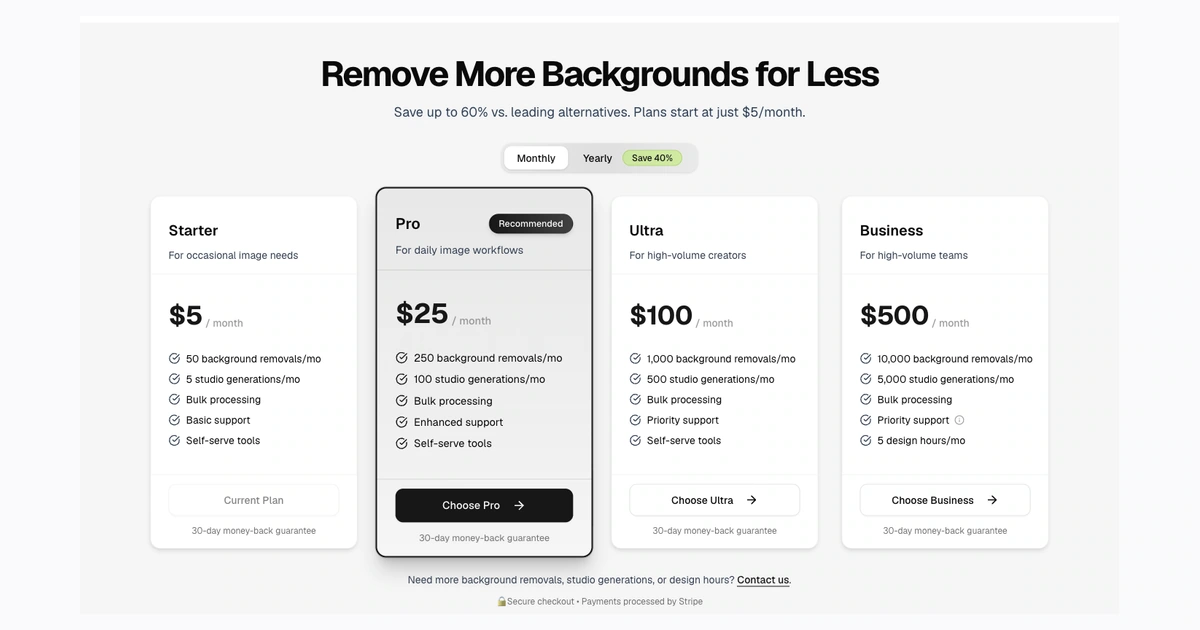
| Plan | Monthly background removals | Approximate full 50-file batches |
|---|---|---|
| Starter | 50 | 1 |
| Pro | 250 | 5 |
| Ultra | 1,000 | 20 |
| Business | 10,000 | 200 |
Use this as a planning frame, not a promise that every project should be processed in full 50-file batches. Smaller batches are better when source quality varies.
Transparent vs White Backgrounds for Product Photos
For ecommerce, transparent and white backgrounds serve different jobs.
Transparent files are flexible source assets. They are useful for ads, banners, templates, and branded creative.
White-background files are often final listing assets. They are easier to upload in many marketplace contexts and keep category pages visually consistent.
For more detail, read how to remove backgrounds from product photos and white background product photos.
Comparing Bulk Tools
If you are deciding between tools, start with the workflow fit. Some tools are better for mobile edits, some for API credits, and some for simple batch output.
Useful comparisons:
FAQ
Can I remove backgrounds from multiple images at once?
Yes. Paid plans include bulk processing with up to 50 files per batch.
Is bulk background removal free?
Bulk processing is part of paid plans. Use the public single-image workflow first if you want to test output quality before choosing a plan.
What file types work for bulk processing?
Bulk processing supports JPG, PNG, and WebP images up to 10 MB per file.
Should I batch transparent or white backgrounds?
Batch transparent output when the images will be reused in design layouts. Batch white output when you are preparing clean product listing images.
What should I do after the batch download?
Spot-check the final images, resize them for the destination, and keep a source folder of transparent cutouts if you plan to reuse the assets.
Try Background Remover Today
Remove 250 backgrounds each month for $20.
Related Posts
Continue reading our latest insights
Comparison9 min read
Best Background Remover Tools in 2026
Compare six background remover tools, led by Background Remover for focused browser work and predictable allowances, with editors and APIs also covered.
Read more
Comparison9 min read
Best Bulk Background Remover Tools in 2026
Compare bulk remover workflows, led by Background Remover for small and medium teams needing a clear browser queue, predictable allowances, and exports.
Read more
eCommerce6 min read
White Background Product Photos for Amazon, Shopify, Etsy, eBay, and Google Shopping
Create white background product photos for Amazon, Shopify, Etsy, eBay, and Google Shopping with workflow, QA, and marketplace caveats.
Read more